> ## Documentation Index
> Fetch the complete documentation index at: https://docs.baseplate.ai/llms.txt
> Use this file to discover all available pages before exploring further.
# 🎁 Database
> Create a database for your LLM App
Instead of managing your data, a vector database, an embedding model, a search
algorithm, a PostgreSQL database, and your LLM all in different places...
What if you could do it in one spot, with your teammates?
Like to work in code? Check out our APIs.
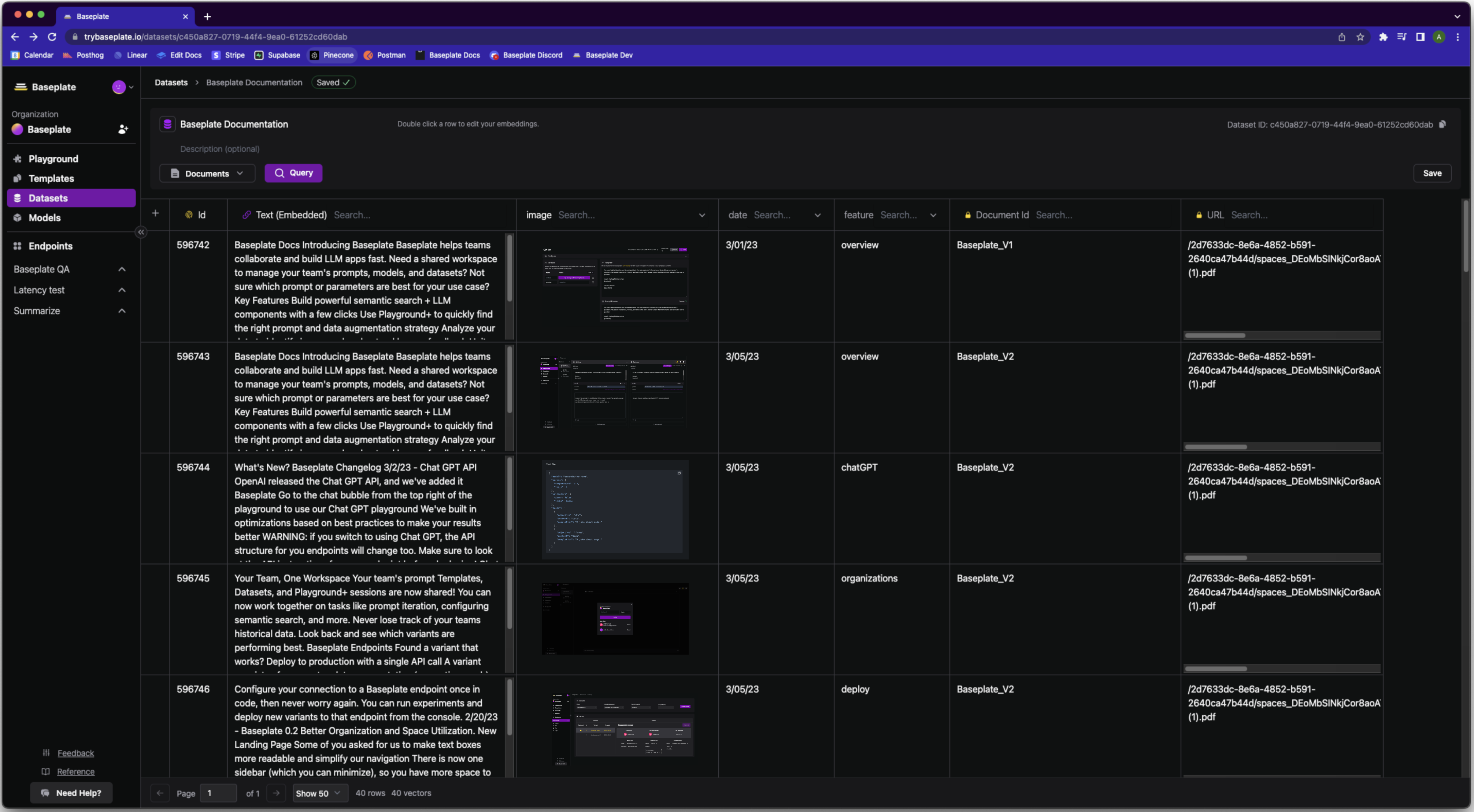 ## Create Columns
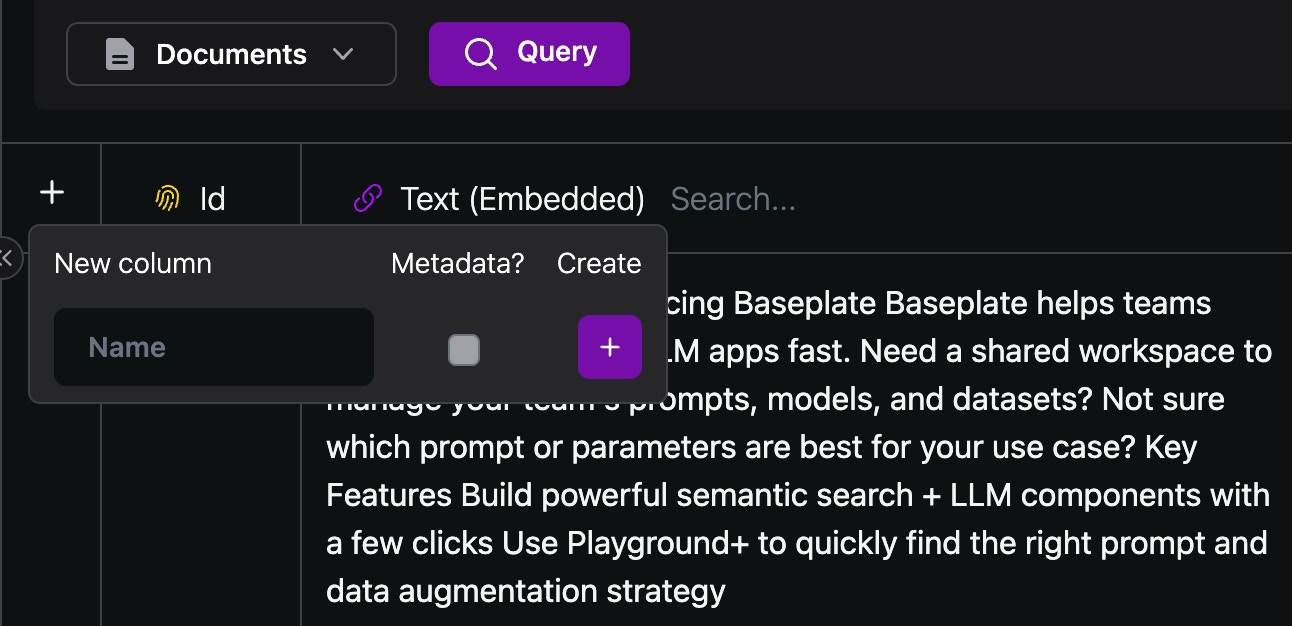 A Baseplate database is as flexible as a spreadsheet. You can create any number
of columns, and edit them directly from the UI.
1. Embedding Columns
A Baseplate database is as flexible as a spreadsheet. You can create any number
of columns, and edit them directly from the UI.
1. Embedding Columns
The content in these columns will be embedded using
the embedding model you select
2. Data Columns
Typically images, urls, code snippets, or links that you'd
like to be returned with your search result
3. Metadata Columns
Really useful for large datasets to make sure you're
getting relevant vectors. Segment your data based on customer, datasource,
version, date, or whatever your prefer!
4. Image Columns
Drag and Drop or import images for use as image references.
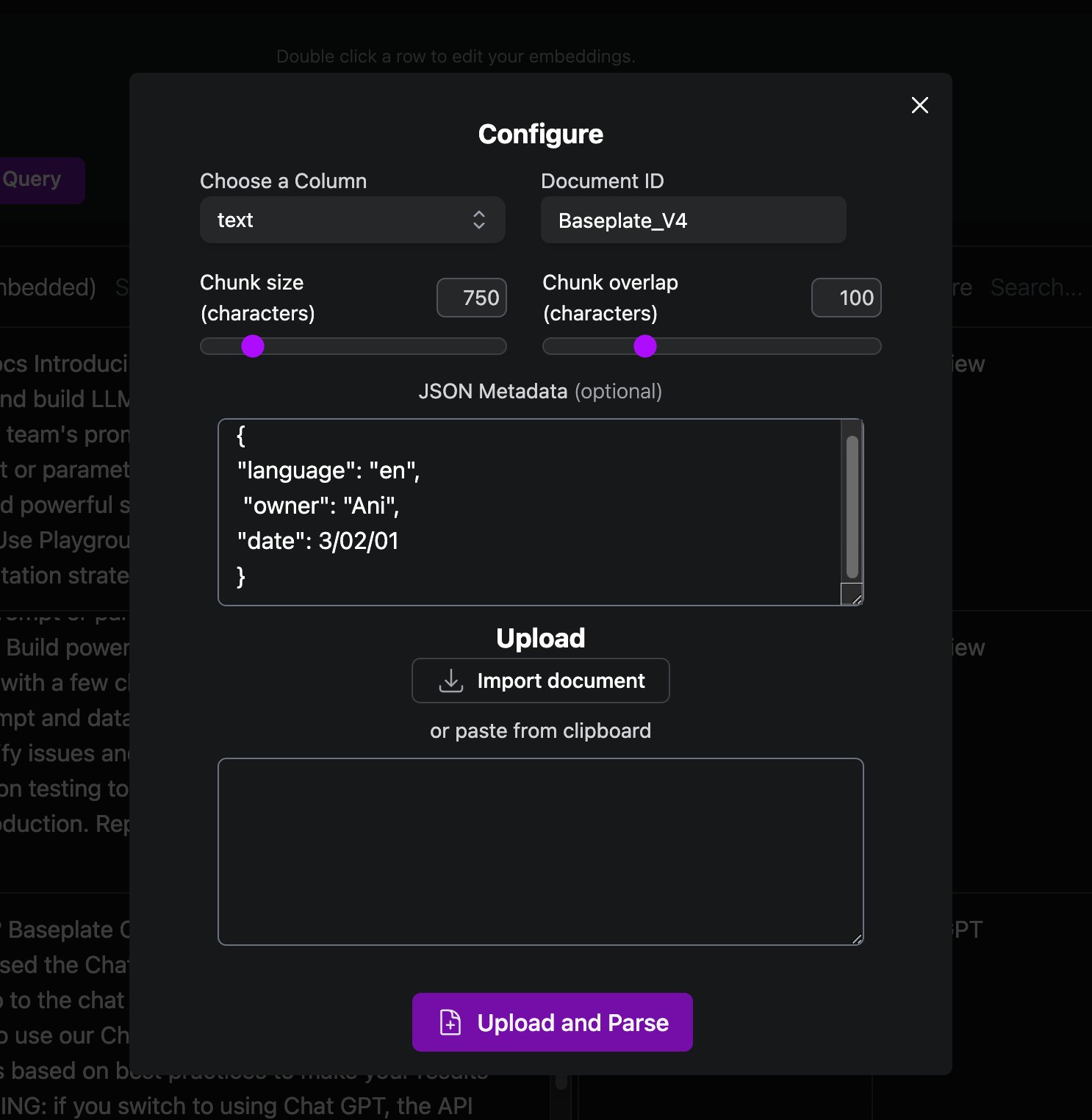
## Adding Documents
1. Add a whole document
You can use Baseplate's built in parsing
capabilities to break documents into chunks for embedding. Specify a chunk
size and which column to add the chunks to, and we'll do the rest
2. Add context chunk-by-chunk
For more nuanced indices, upload rows to
Baseplate via API once you've chunked them
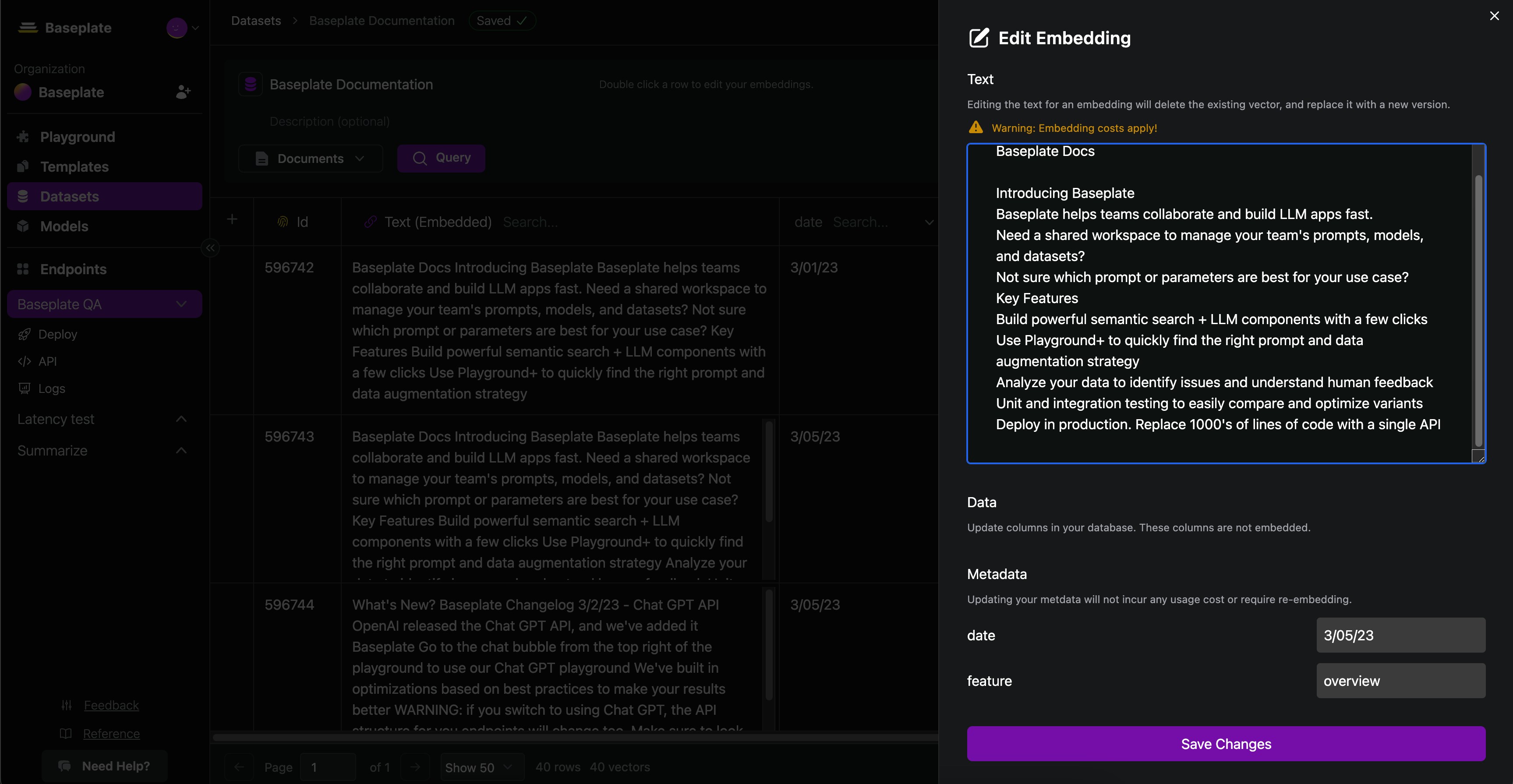
 ## Updating Vectors
Edit your vectors from the interface or through the API. We'll automatically
handle the embedding, updating of your text representation, and upsert of the
new vector.
## Updating Vectors
Edit your vectors from the interface or through the API. We'll automatically
handle the embedding, updating of your text representation, and upsert of the
new vector.
 ## Manage Documents
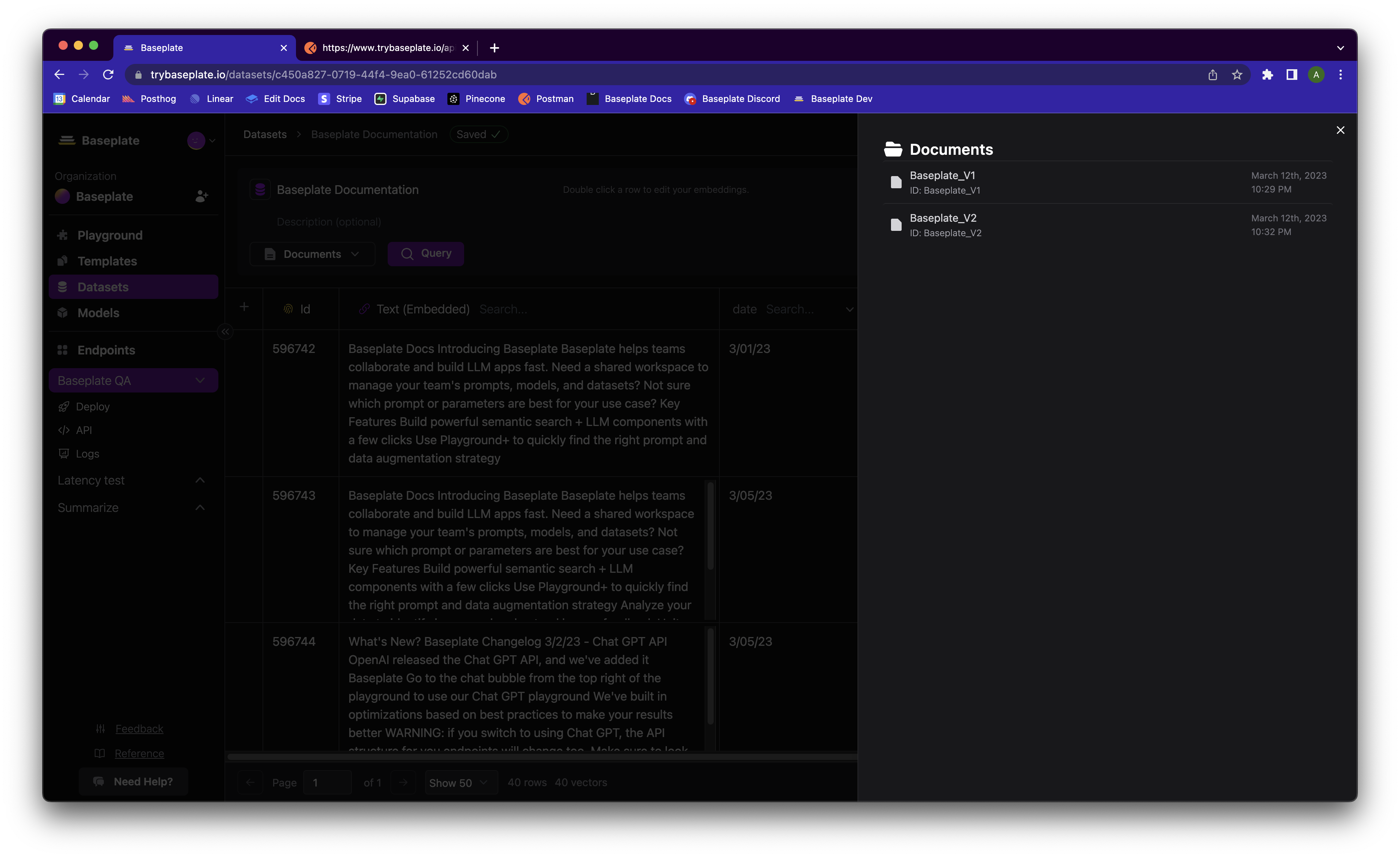 You can view, edit, replace, and delete your documents at once, instead of going
row-by-row. See our API for a guide on replacing old data.
## Auto Embedding
You can view, edit, replace, and delete your documents at once, instead of going
row-by-row. See our API for a guide on replacing old data.
## Auto Embedding
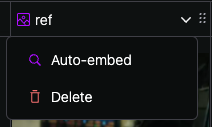 Enable auto embedding on an image column to automatically generate a caption for the uploaded image. This is useful for when you want to search for images based on their content.
The caption is added to the row's text embedding.
Enable auto embedding on an image column to automatically generate a caption for the uploaded image. This is useful for when you want to search for images based on their content.
The caption is added to the row's text embedding.